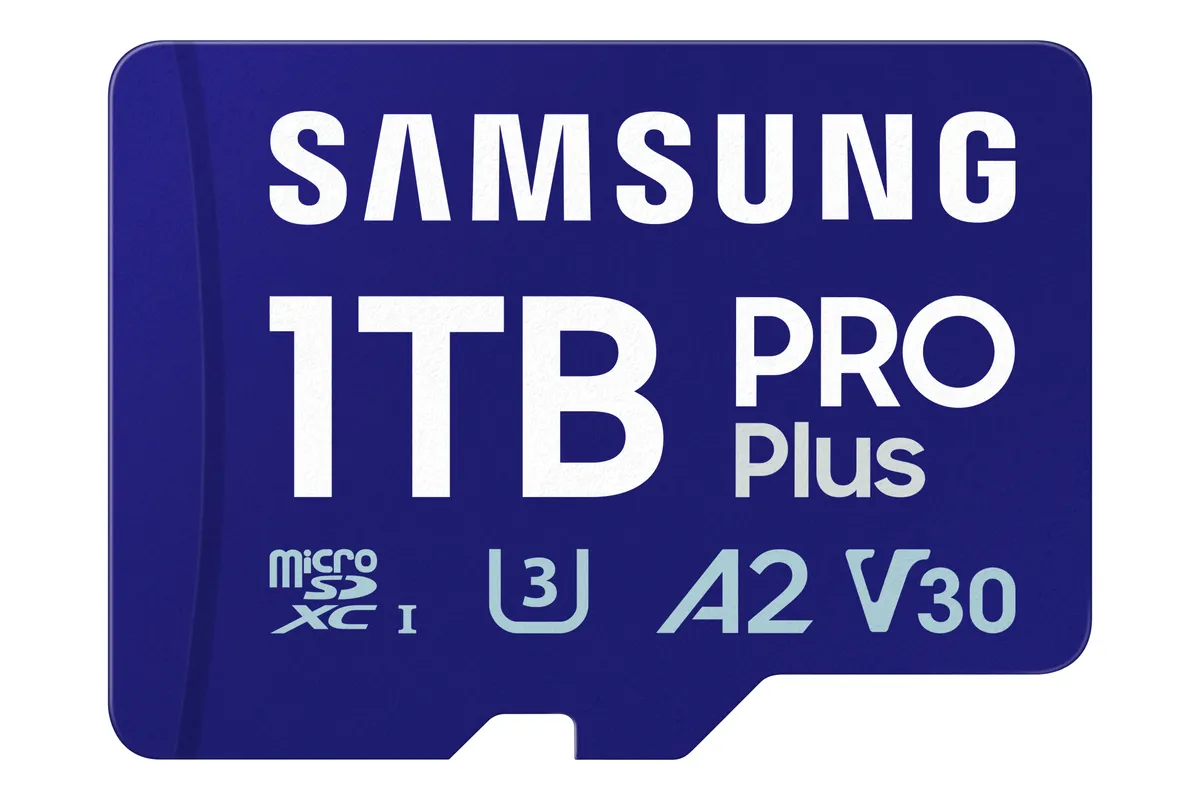
A card helps when files fill the tablet
A microSD card can hold your photos, videos, and documents separately from a Galaxy tablet’s built-in storage. It cannot turn a 128 GB tablet into a larger internal-storage model: Samsung says its Android devices do not support adoptable storage. Moving an app is conditional, too: its storage settings must offer Change (Samsung’s microSD guide).
Start by finding what occupies the space. A tablet full of saved videos needs a different fix from one full of apps whose storage location cannot change.
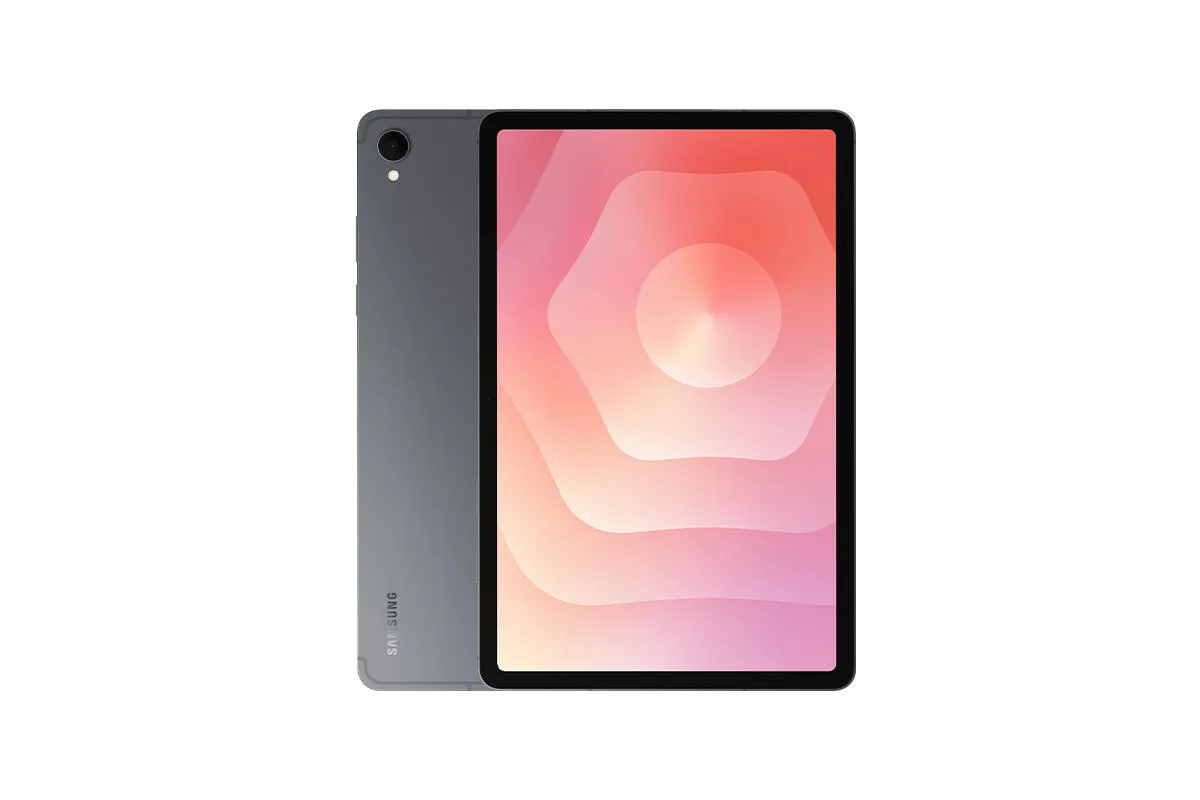
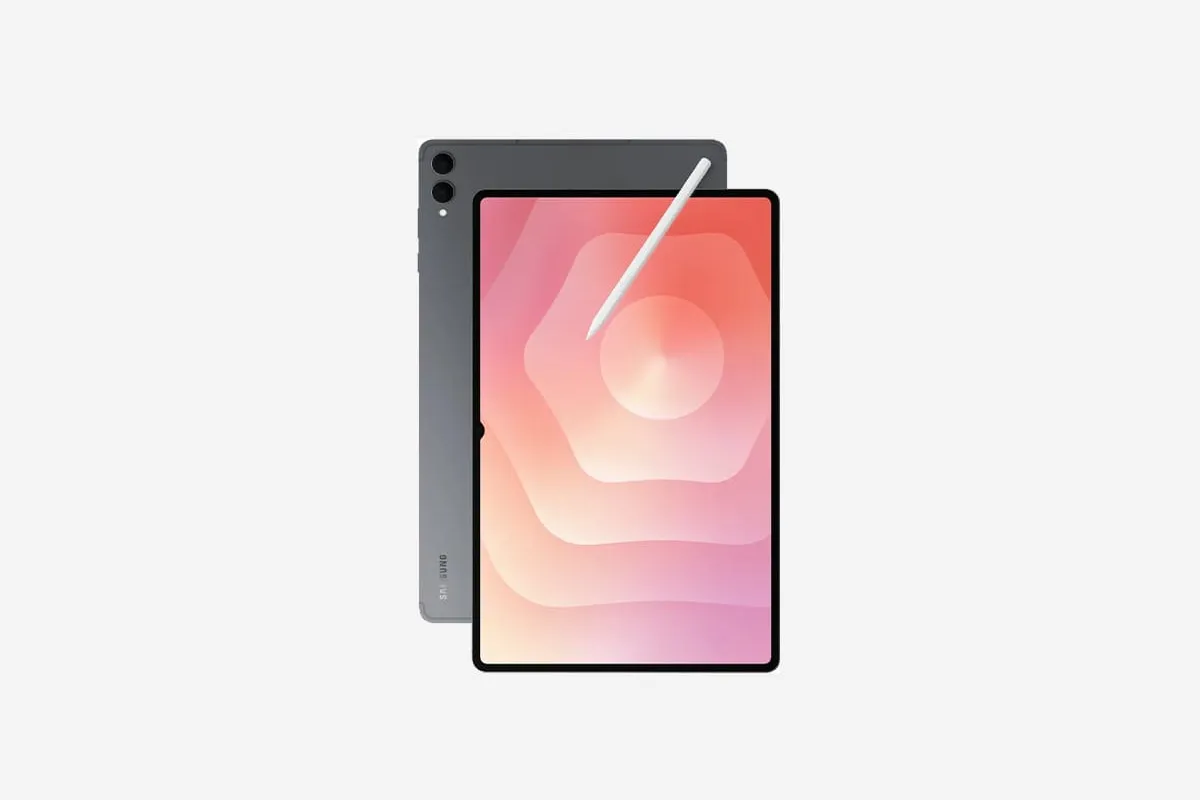
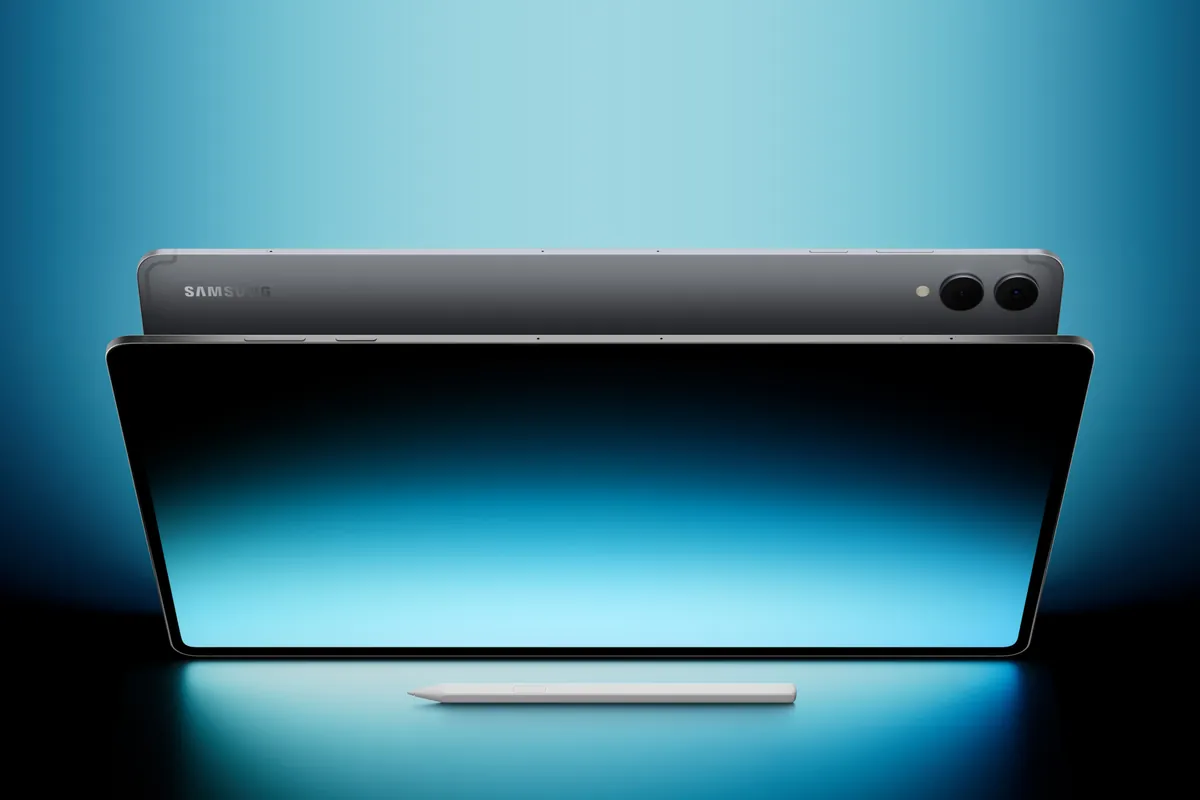
This guide uses the Galaxy Tab S11 and Tab S11 Ultra as examples. Both launched with Android 16 and One UI 8 and support microSD up to 2 TB (Samsung’s specification table). The procedures below follow Samsung’s US support guidance; menu labels and available options vary with model, region, and software. Check your exact tablet’s specification before buying a card, especially for older models.
Check what is using internal storage
Open Settings → Device care → Storage and inspect the file categories. Samsung lists images, videos, audio, and documents here (storage instructions).
| What takes the space? | What to do next |
|---|---|
| Personal files you can locate in My Files | Copy a small batch to the card and check it opens before removing originals. |
| Installed apps | Check each large app for the Change option described below. |
| Downloads managed inside an app | Check that app’s own storage settings; do not assume its downloads are ordinary files you can relocate. |
The last distinction matters when planning a purchase. A library visible inside an app is not proof that a card can hold it. Confirm the app’s documented options before counting that space as expandable.
Copy files first, then reclaim the space
With the card inserted, open My Files, find a file, and press and hold to select it. Choose Copy, return to the My Files home screen, open SD card, choose a destination folder, and tap Copy here. Samsung also provides Move and Move here for transferring files (file-transfer instructions).
For a first transfer, copying is a useful check: open the destination file and confirm it is the one you intended to keep. Copying leaves the original in place, so it does not itself reclaim internal space. Remove the original only after checking the copy and keeping a separate backup of irreplaceable files.
Move an app only when Change appears
Open Settings → Apps → [app name] → Storage. If Change appears, select it, choose SD card, then Move, and follow the prompts. Samsung says preinstalled apps cannot move and other apps may prohibit it for performance reasons. If Change is absent, this procedure cannot relocate that app (app-transfer instructions).
Even an eligible app may leave required data in internal storage. Samsung’s Ireland support page explicitly explains that this is normal. Check the space recovered rather than assuming the app’s entire listed size has moved.
That page also uses the phrase “default internal storage” for certain apps. Read it as app-specific guidance alongside Samsung US’s explicit statement that adoptable storage is unsupported, not as a promise to merge the card with built-in storage.
If the card is missing or a transfer fails
If SD card does not appear in My Files, check that your model supports it and that the card is seated correctly. Samsung says compatible file systems are FAT32 or exFAT and warns that formatting erases the card. Preserve readable files elsewhere before considering formatting; it is not a harmless retry button (compatibility and formatting guidance).
Before taking a working card out, unmount it. Samsung Canada offers a useful route when Settings differs: in My Files, find SD card under Storage, open its three-dot menu, and select Unmount (removal instructions). Finish transfers before doing this.
Choose internal storage around the apps you need
For the Tab S11 pair, Samsung lists 128, 256, and 512 GB configurations for the smaller tablet and 256 GB, 512 GB, and 1 TB for the Ultra; availability varies by market (launch specifications). Use the device pages to check regional configurations.
Consider a smaller internal-storage model plus a card when your growing collection consists mainly of files you can move. Choose more internal storage when your essential apps lack Change or keep substantial data internally. This guide does not establish which individual games or streaming services support card storage, so verify those before buying.
If the tablet will also replace a computer, check what Samsung DeX can and cannot replace. File capacity and the ability to finish your work are separate buying decisions.
Sources
- samsung.com · checked Samsung US: microSD, adoptable storage, and app transfers
- samsung.com · checked Samsung Ireland: app data that stays internal and regional interface differences
- samsung.com · checked Samsung US: storage categories and moving files in My Files
- samsung.com · checked Samsung Canada: unmounting a card through Settings or My Files
- news.samsung.com · checked Samsung Global Newsroom: Galaxy Tab S11 series storage and launch software